# iOS Application Configuration
The iOS application configuration is where you tie in iOS app and IAP compatibility for your Elements application.
You'll need an Apple Developer account and will need to create the app in App Store Connect.
1. Edit an application in Elements
2. Add an Application configuration in the Application Editor, as seen [here](#adding-an-application-configuration) and select "Add iOS App Store," or edit an existing iOS Application configuration for the application.
3. Enter the needed info and save with the "OK" button.
4. **Application Configuration Name:** This is a unique name for the application configuration.
5. **Team ID:** Your Apple Developer team ID for the app.
6. **Client ID:** Your app's bundle ID from App Store Connect (e.g. com.company.example).
The final two fields relate to Apple Sign-In, which we'll cover below.

#### iOS Apple Sign-In
Apple Sign-In for your app is also configured in the iOS Application Configuration.
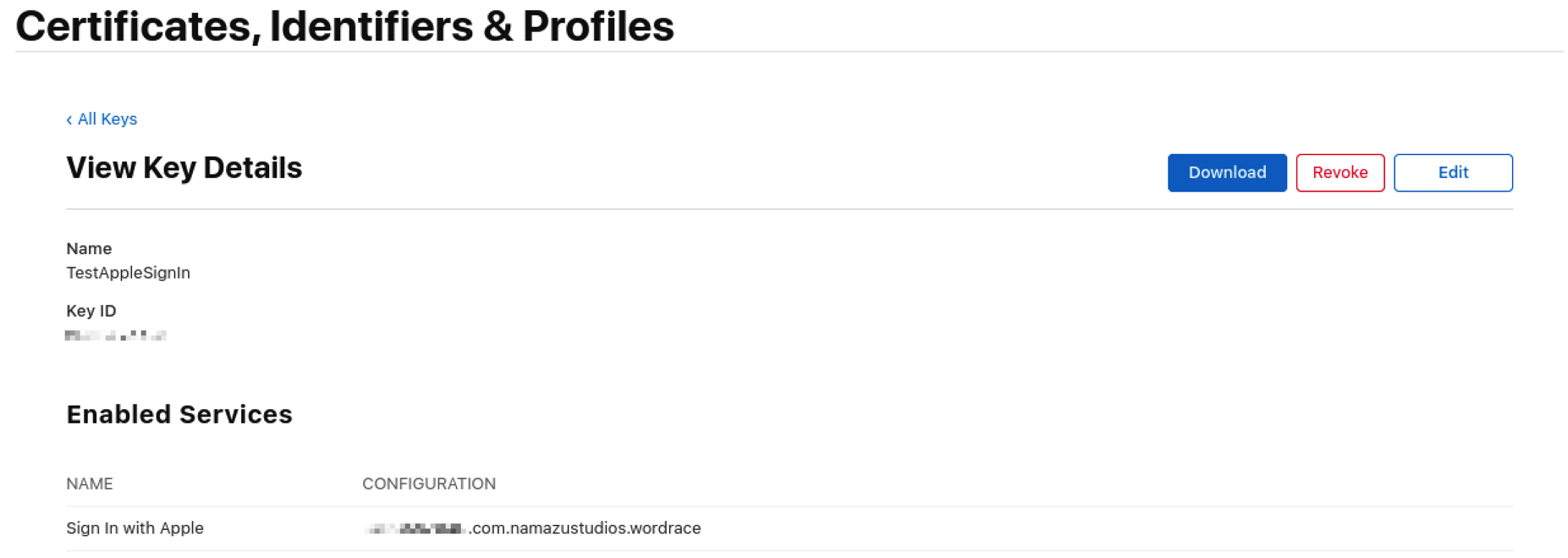
You'll need to create an Apple Sign-In key in the Apple Developer console.
Apple Sign In Config
You'll need the key ID as well as to download the key.
In the application configuration on the Elements admin console:
* **Key ID:** Your apple sign in key ID.
* **Apple Sign-In Private Key:** The private key you downloaded. Be sure to include the headers, as the key must be in PEM format.
You'll also need some server-side lua code and some client-side code to complete setup, which will be covered elsewhere in the manual.